


This article provides basic room and AV information specific to MN 3230 at the Collaborative Digital Research Space. Please keep in mind that this guide is meant to help you troubleshoot using the tech and equipment in the space. For hybrid events and events with more complicated setups, or if you are unsure and unfamiliar with the tech, we highly recommend booking Classroom A/V Support with I&ITS for your event on the UTM Service Portal at least 48 hours before your event.
Lights
The lights in MN3230 are controlled by a single light switch in the back of the room, located in the kitchenette next to the paper towel holder.

How to use audio/visual system in MN 3230
The Audio/Video (AV) controls:
The AV closet is located in the far-left corner of the room.


The touch panel:
The touch control panel is for user to access the room’s AV system. It is located on the AV closet at the far-left corner of the room.
Audio and microphones:
Microphones: The room has a lavalier (lav) microphone and a handheld microphone. You can either use the lavalier microphone or the handheld microphone one at time. Since both of microphones function on the same frequency, using both at the same time will cut the other off. The lav mic is useful for speakers standing at the podium or moving around the room, while the handheld microphone is useful for Q&A and panel sessions.You can control the volume of the microphones from the A/V touch panel located in the back of the room. Simply turn on the microphone you wish to use, and ensure the other microphone is turned off.

Example of a lav mic similar to the one at CDRS.
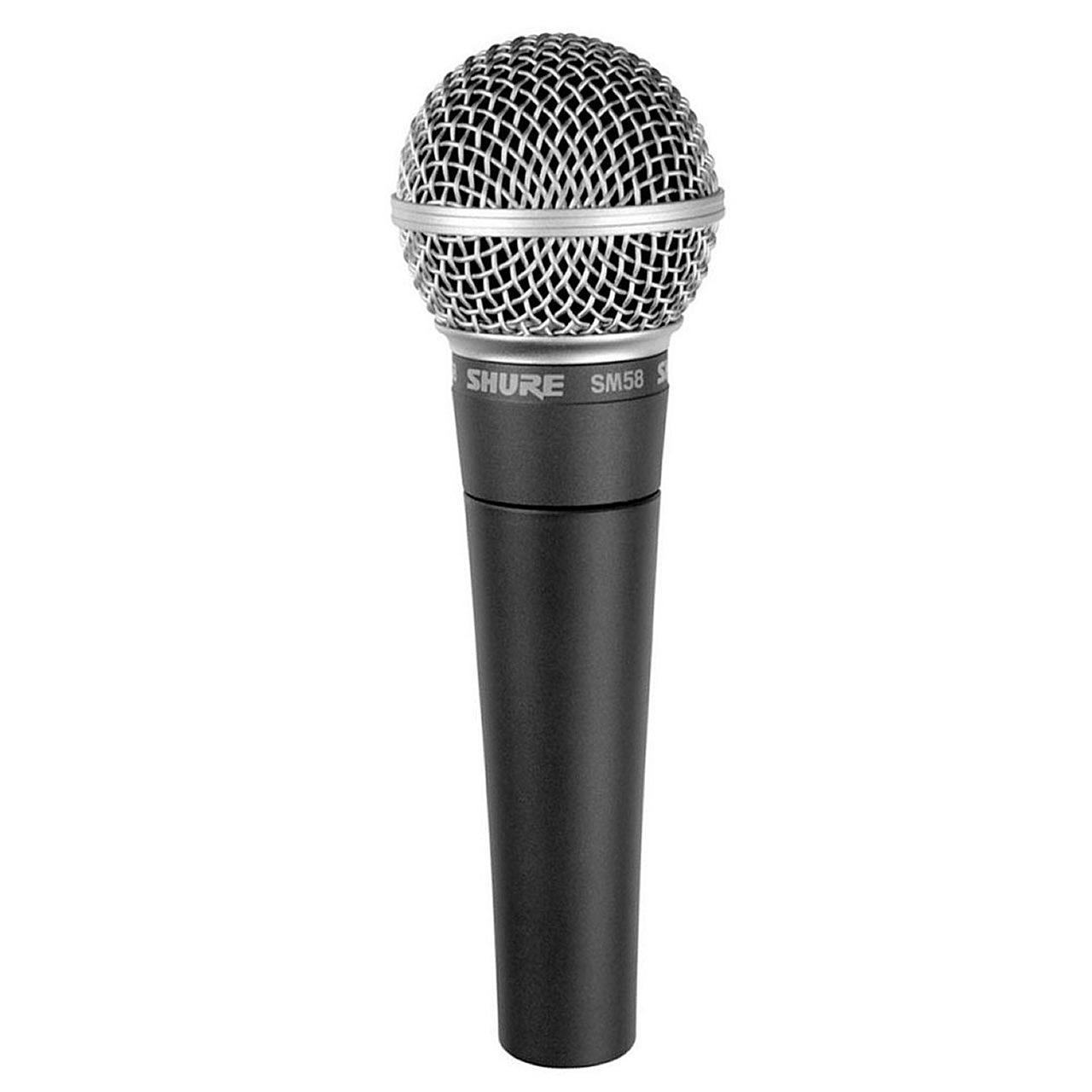
Example of a handheld mic similar to the one at CDRS.
*Note: source audio is the audio coming from the connected laptop or one of the room computers that are connected to the Center Monitor and Left Monitor (TV screens) called "Meetup PCs."
Using the Projector
The projector is already connected to the laptop that attached to the podium at CDRS. Log into the laptop using your UTORid credentials. You can then open whichever program you need to use (Microsoft Office, Sharepoint, OneDrive, Teams) and log into your Microsoft or Teams account using your UTORid. Once you are logged into your accounts, you can download a presentation that you've emailed to yourself, or that is saved on your SharePoint or OneDrive. You can also plug a USB key into the laptop, and download your presentation onto the laptop from there. We recommend using the podium laptop rather than your personal laptop since it is already hooked up to the projector, and is set up to function more smoothly. If you decide to use your own laptop, please unplug the HDMI cable from the podium laptop and plug it into your own laptop.
*Note: If you decide to use your own laptop, please ensure that you have an HDMI port or HDMI adapter dongle as we are unable to provide one.
Once your presentation is loaded onto the podium laptop or your own laptop, go to the AV touch panel at the back of the room (see above) and press "Wall Input Centre" until it lights up blue, then press "Send to Projector." This action will ensure that the projector turns on, and the projector screen will automatically come down.
Breakdown of steps:
- Log into the podium laptop using your UTORid credentials, or attach your laptop to the centre input by unplugging the HDMI cable from the podium laptop and plugging it into your own laptop. You must have an HDMI dongle if your laptop does not have an HDMI port.
- Download your presentation, file, or open whichever program you wish to use for your presentation and log into that program.
- Go to the AV touch panel at the back of the room.
- Press "Wall Input Centre" until it lights up blue.
- Press "Send to Projector" until it lights up blue.
- The projector will turn on and the projector screen will automatically come down.


Using the PCs and TV Screens
A "Meetup PC" is the computer attached to the back of the monitors at CDRS. Two of the three monitors have an attached PC- the Center Monitor and the Left Monitor. These computers can be accessed using the mouse and keyboard kept in front of each monitor screen. The keyboard and mouse for the Centre Monitor are occasionally kept on the podium at CDRS, or on the window sill behind the podium. To use these computers and TV screens, simply turn on the TV Screen using the designated TV remote
Note: Only the left and center monitors have computers attached to them.
To display the meetup pc on the TV/Monitor, select “Select Meetup PC” on the touch panel. These two meetup PC can only be displayed to their connected monitor only.
The left and center PC is equipped with a web camera & a tabletop microphone that facilitates video conferencing.
Note:
- These computer’s image cannot be shared to reset of the displays.
- The meetup PC is connected to HDMI 1, whereas the external laptop is connected to HDMI 2 on the TV.
Using wall HDMI/VGA input to connect an external laptop
- Connect your laptop to the HDMI/VGA cable on the wall plate located right below the monitor.
- To display your laptop’s screen, on the touch panel select the wall input to which the laptop is connected and press “Send to Monitor or Send to Projector” depending upon where you want to display.
- The projector will turn on automatically when you select a source on the touch panel and hit “Send to Projector”.
Note:
- If you like to send it to all screens, select the wall input and then press “Send to Left Monitor”, “Send to Centre Monitor”, “Send to Right Monitor” and “Send to Projector”.
- You can only send a laptop image to multiple displays in the room that is connected to HDMI/VGA input left, center and right.
- You cannot send the meetup PC to another screen other than their own monitor.
- If somehow the projector displays a blue screen, it means it is on a different input. On the projector remote, choose HDBaseT.
Turning off the AV System and Projector
After your event, please ensure to turn off the A/V system by going back to the touch panel at the back of the room and pressing "Log Off" in the bottom right corner and then "Log Off" by hitting the checkmark (see below). The screen will automatically roll back up and the projector will automatically shut off. Please ensure to turn off the lights when you leave.

